
Multiple pages, one document
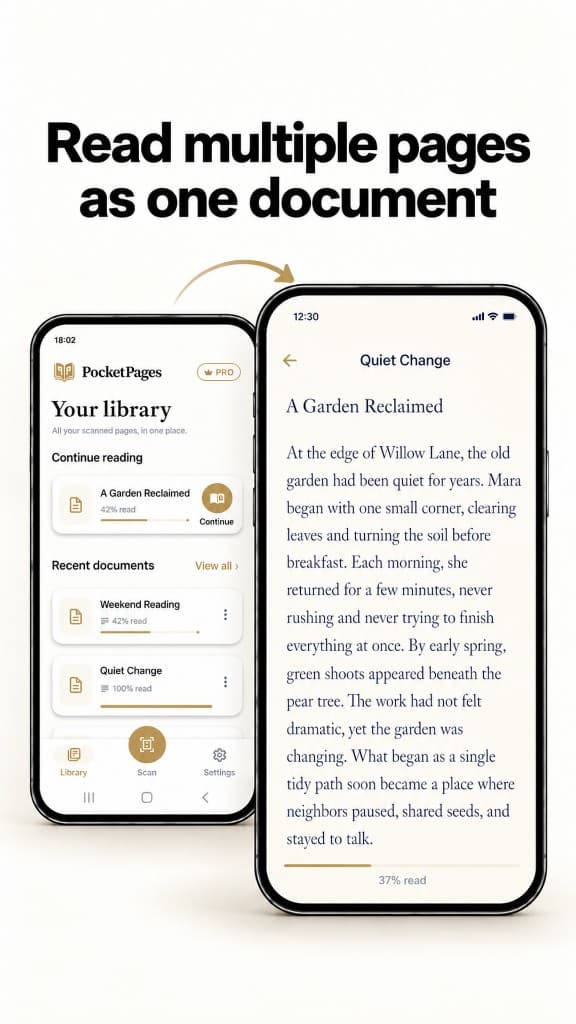
Combine photographed pages into continuous text instead of moving between separate images.
Book scanner for Android
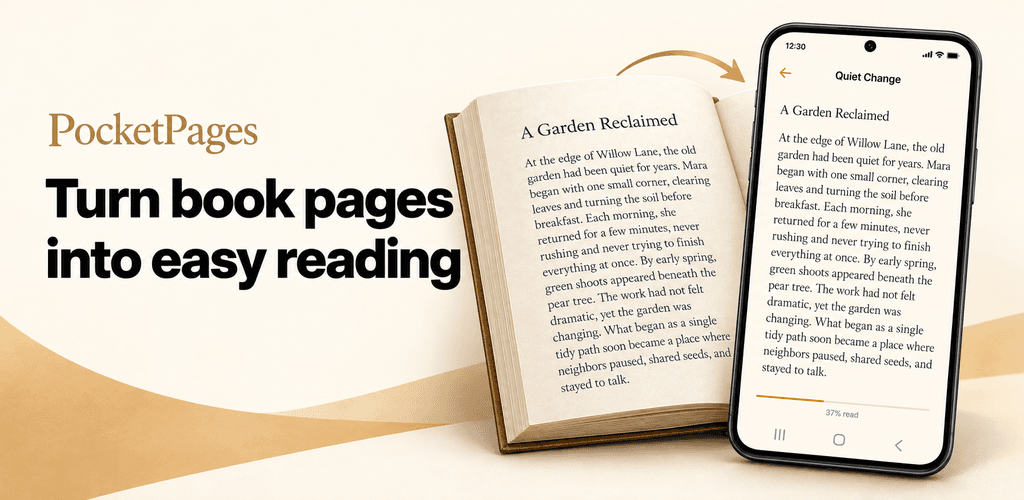
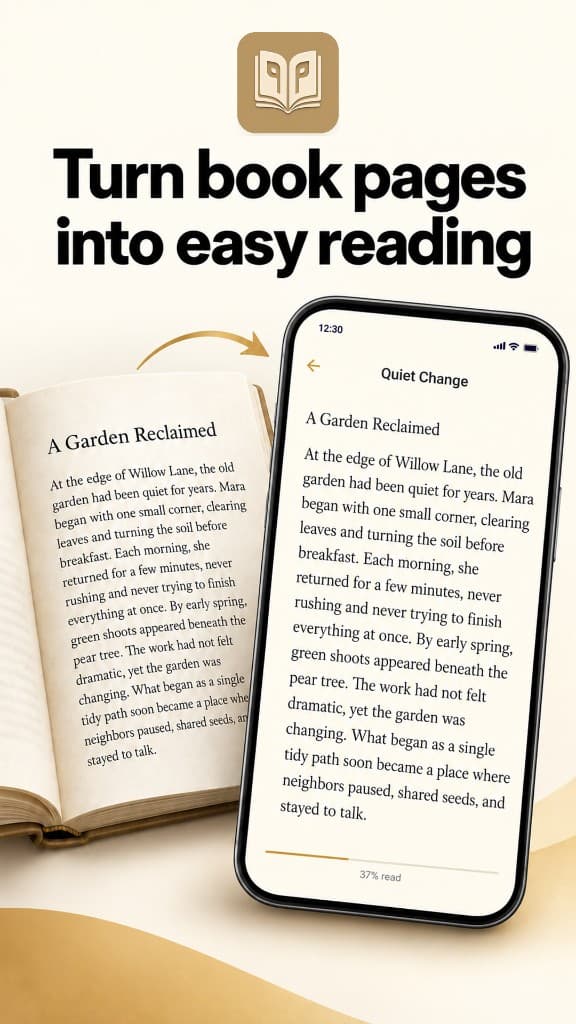
Scan printed pages into continuous text, save them in your library, and read the pages you need wherever you are.
Available for Android
How it works
Capture only the pages you need. PocketPages handles the transition from page images to one phone-friendly document.
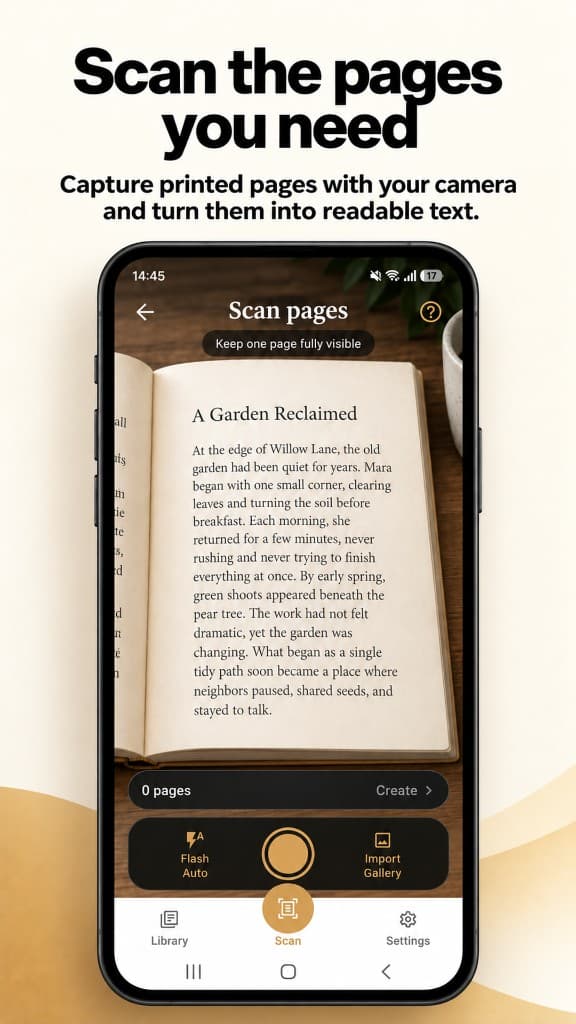
Photograph printed pages with your camera or choose page images already on your phone.
PocketPages uses text recognition to combine the pages into one clean, readable document.
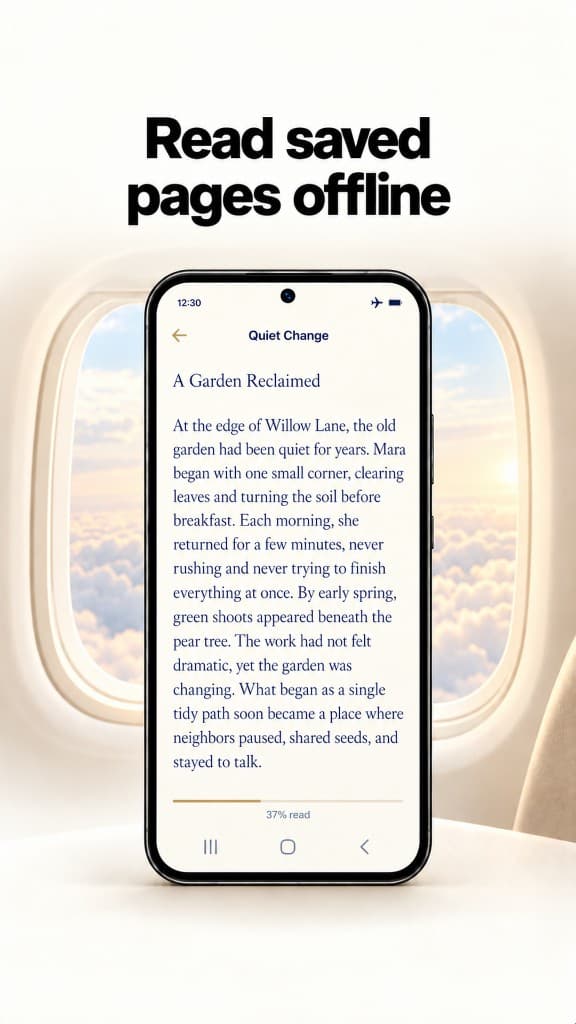
Open the saved document in your library, pick up where you left off, and read offline when you are away from Wi-Fi.
Features
The useful part begins after capture: clean text, a place to keep it, and a reader that stays out of the way.
Combine photographed pages into continuous text instead of moving between separate images.
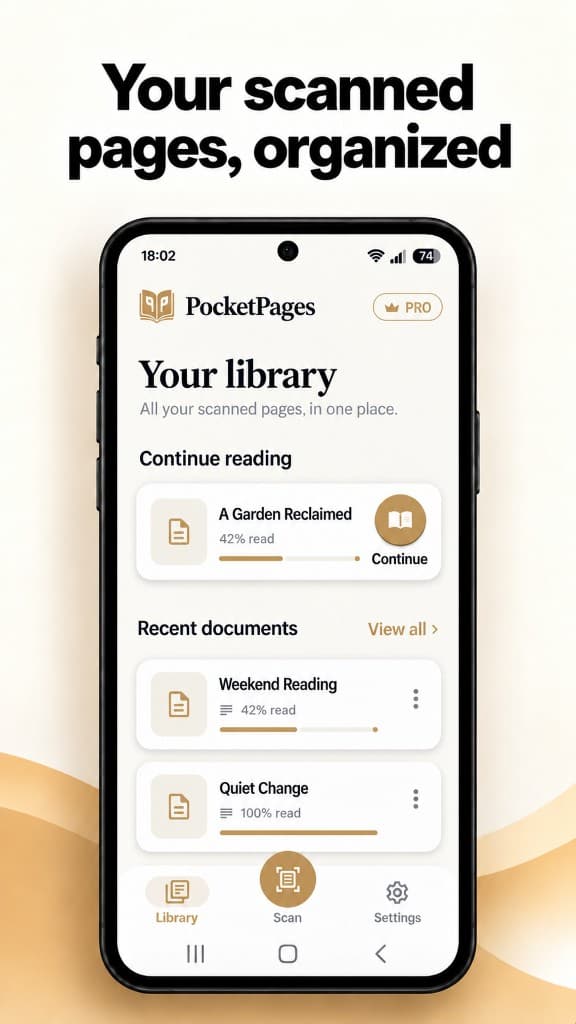
Keep scanned documents organized, easy to revisit, and connected to your account.
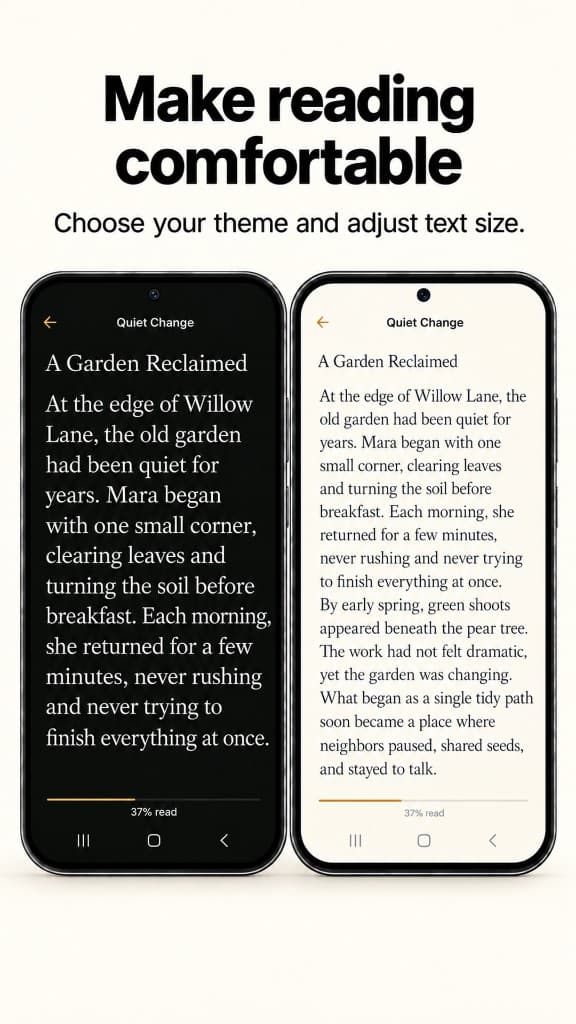
Adjust text size and choose a light or dark reading theme to suit the moment.
See reading progress and continue a saved document without searching for your place.
Read documents saved on your device while travelling, commuting, or away from Wi-Fi.
Your extracted documents live in your account-connected library, not a public book catalogue.
Inside PocketPages
Real screens from the Android app, from your saved library to the reader you can shape around your preferences.
Swipe to explore the app screens
Made for selected pages
PocketPages is useful when you want to take a chapter, passage, or set of study pages with you in a format that is easier to read on a phone.
Bring a selected section on a commute or trip without carrying the physical book.
Keep the pages you are studying in one readable document on your phone.
Open your library and continue from the progress you saved earlier.
PocketPages processes pages you photograph or select. It does not provide books or bypass access controls.
Questions, answered
PocketPages is an Android book scanner that turns photos of printed pages into continuous text. You can save the result in your document library and read it in a focused mobile reader.
Yes. Capture or select multiple page images and PocketPages combines the extracted text into one readable document.
Yes. Completed documents are kept in your library so you can reopen them and continue reading. Documents saved on your device can be read offline; an internet connection is required to process new scans.
Yes. PocketPages lets you change the text size and choose between light and dark reading themes.
No. PocketPages is not an ebook store or book catalogue. You bring the printed pages or page images that you want to process.
No. Automated text recognition can make mistakes, especially when a page is curved, dimly lit, damaged, or unusually formatted. Check important passages against the original source.
Only scan or process material that you own, have permission to use, or are otherwise legally allowed to process. PocketPages does not grant rights to third-party content.
PocketPages
Scan book pages into text, save them in your library, and settle into a reader made for your phone.